
🔋“Power Up Your Lessons: Go Live with Pear Practice”
by TraLisha Strambler, Ethridge Elementary
Hello, I’m TraLisha Strambler and I’m here to share some Pear-fectly wonderful news about the new “Pear Practice” by Pear Deck. If you love Blooket, Kahoot, and Quizziz, then you will absolutely LOOOVVEEE Pear Practice. It is a wonderful combination of all 3 and will truly gamify and transform your lessons! In this blog I will share some quick tips to get you started.
🔋What is Pear Practice?
Pear Practice is part of the Pear Deck Learning platform, built to help educators deliver standards-aligned, gamified practice that meets students where they are. It supports:

Live team-based sessions for collaborative learning
Independent assignments for personalized practice
Daily remixes that adapt to student progress
Insights and reports to track mastery over time
Whether you're prepping for a quiz or reinforcing key concepts, Pear Practice makes it easy—and fun.
🔋Why should I use Pear Practice in my classroom?
Pear Practice is a great way to instantly engage your students at the beginning or a lesson or keep your students’ attention at the close of your lesson with an engaging pear start game. Finding or creating a lesson is quick and easy. Plus, students will love participating. This is a great tool to use during your allocated review days in math, reading, or science!

🔋Getting Started
Log in using your School Google Account https://account.peardeck.com/home
Set Up Your Classroom
Create a classroom to organize students and assignments. You can enroll students in three ways:
- Google Classroom import
- Shareable join link (this link can be posted in Seesaw/Canvas)
- Email invitations
Once students join, they’ll be able to track their progress and access personalized practice sets.
Explore Content
Use the Explore tab to browse certified, standards-aligned Practice Sets. You can filter by subject, grade level, or even view content created by other educators.

Assign Practice Sets
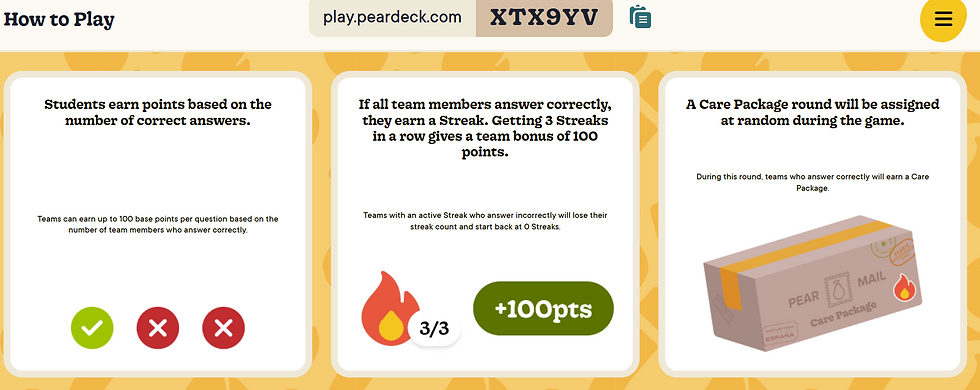
Choose a Practice Set and assign it to your class or individual students. You can run it as a Live Practice for real-time collaboration or assign it for independent work. Each set is customizable to fit your instructional goals.
Monitor Progress
Use Pear Practice’s built-in analytics to view student performance by assignment, standard, or Practice Set. This helps you identify learning gaps and adjust instruction accordingly.

🔋Pear-fect Tips and Tricks
Spend time exploring all of the premade lessons before creating your own
Preview the questions in student mode!
Don’t like the question? Edit it or change the question type to meet the needs of your students
✨ Final Thoughts
Pear Practice isn’t just another review tool—it’s a smarter way to help students master content while keeping them engaged. With intuitive setup, rich content, and real-time insights, it empowers teachers to focus on what matters most: meaningful learning.
Ready to give it a try? You can explore Pear Practice and start building your first classroom on Pear Deck’s official blog
I used AI for brainstorming only and crafted the content myself.