
Need to kinder assess? Don't stress!
By Sandy Soler, Parsons Pre-K
Have you ever thought “If only I had multiple me’s in this classroom I could get so much done!”. If you have, this post is actually for you! No, I don't have the formula to clone you, but I do have something just as good. Today I will explain how to create an assessment on seesaw that is differentiated for students based on their skill. This will help you effectively listen and assess and provide feedback to your students with out actually pulling them one by one.
What is Seesaw?
Seesaw is a digital platform that can help teachers create interactive assignments, assessments, and also communicate with parents. In seesaw teachers can create activities, or use and upload existing activities from the curriculum. Seesaw also has a variety of pre-made lessons and activities that are grouped by standard in the community library.Not only does it help with lessons but students can also display their work to teachers and parents. It's like an interactive journal! It helps organize students' work while the teacher provides feedback to each student.
How students use it:
Students can complete assignments in different ways while using the tools provided such as: text, voice recordings, video recordings, photos and drawings.
Why teachers use it:
Teachers can assign activities, differentiate their learning, collect students' work and give timely feedback without making paper copies. Students are kept engaged and are excited to build their own independent learning.
Creating an Assessment or assignment:
Make sure you log into your seesaw account using your GISD credentials.
Click on the green add button on the right hand corner of the screen. This opens your activity options.

You will see 3 options: post to journal, assign activity, create activity. You will want to choose, create activity.

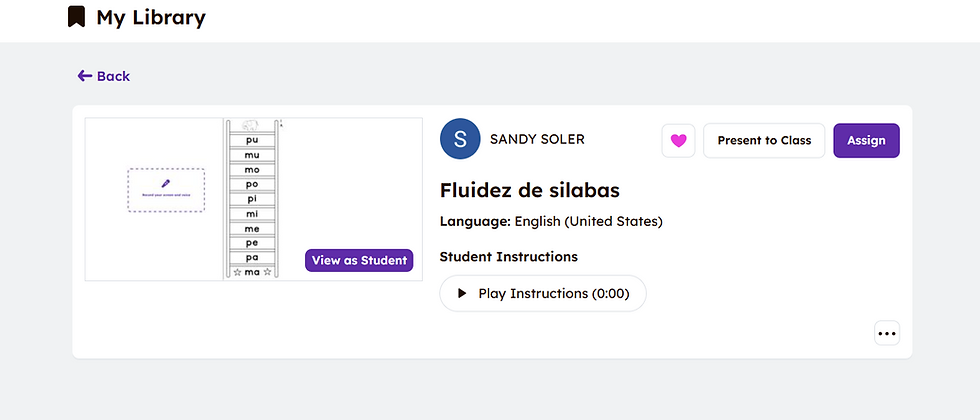
Once you choose create activity your screen will show you the create activity screen. Name your activity. Since I am uploading a fluency assessment page for students I will name mine, fluidez de silabas. I will be uploading my own pdf that I use for my fluency pages.
How do I upload a PDF?
Choose a file to upload from your computer or google drive.

Once uploaded your screen will show the file you uploaded. Here you can see that I uploaded a page focused on syllables with the letters p and m for those students who needed targeted fluency practice.

Adding a recording option
Now that you have uploaded the assessment, how do we get students to record on their own assessment?
On the left hand side, click the checkmark button.


Once you select frames you will select how you will like the student to complete the assessment. Since this assessment is created for fluency practice for a kindergarten student I will choose the option to record. Students can read aloud into Seesaw.

Once the record button is added. You can move the record box next to your assessment. This record box will be used for students to record their answers.

Once you move the record box to your liking press the check mark on the right hand corner.
Recording Instructions for Students
The final page will come up before you can assign the assessment.Since many kindergartners can’t yet read directions, audio instructions are a lifesaver. To do so, you will click on the record voice option.

Once you have successfully recorded your instructions they will be attached to the instructions box.

You click save.
Assigning the assessment
Once you have saved the assessment. You will now assign the assessment. This is where you can differentiate your assessment. You can assign it to the entire class, or you can assign the activity to specific students based on their skill level.
Before you get started with this assessment/assignment:
Model, Model, Model. It is important to go over it and model with students. As a kindergarten teacher I would project my ipad on my camera and walk them through each step. I did this multiple times before I introduced it during personalized learning centers.
By incorporating seesaw assessments and activities into your teaching practices, you can incorporate technology in a meaningful way. Seesaw is a great way to see what they are learning.Students become more engaged and take ownership of their own learning. With the different response options students are given, differentiation becomes simpler. Give it a try and watch how it enhances learning in your classroom!
I used AI for brainstorming only and crafted the content myself.
